


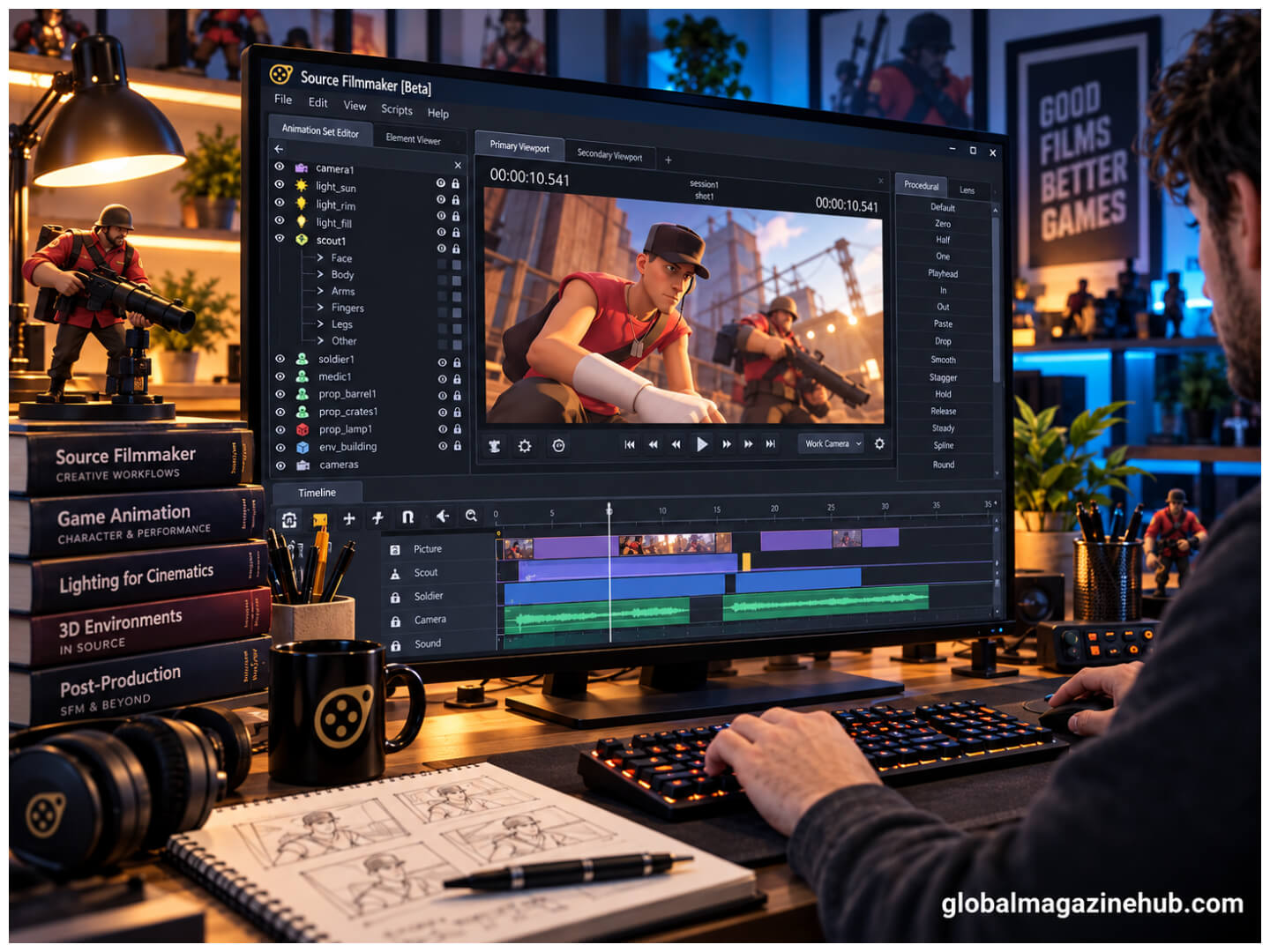
Source Filmmaker (SFM) is a popular animation tool developed by Valve. It allows creators to make 3D animations, cinematic scenes, and character-based videos using Source Engine assets. However, adding custom models to Source Filmmaker requires some preparation. This is where SFM compile becomes important.
Compilation converts 3D model data into files that Source Filmmaker can recognize. Whether you are creating a character in Blender or modifying an existing model, understanding the compilation process helps you avoid technical problems.
Many beginners struggle with missing textures, incorrect file paths, and compilation errors. This guide explains how SFM compilation works, which tools and file formats are involved, and how to solve common issues.
What Is SFM Compile?
SFM compile refers to converting 3D model source files into formats supported by Source Filmmaker. The process allows custom characters, props, and other objects to function within the Source Engine.
Models created in Blender or similar applications cannot normally be loaded directly into SFM using their original project formats. They must first be exported into compatible formats and processed using a model compiler.
The compilation process typically uses SMD or DMX files, a QC configuration script, and StudioMDL.
For example, if you create a character in Blender, you must prepare its geometry, export the model, and compile it before using it in Source Filmmaker.
Once successfully compiled, the model becomes available for animation, posing, and scene creation.
Why Is SFM Compilation Important?
Compilation allows creators to expand their animation projects beyond the models already available in Source Filmmaker.
One major advantage is customization. Artists can create original characters, furniture, vehicles, weapons, and environmental objects for their scenes.
Compilation also prepares essential model information, including geometry, material references, skeletons, and animation sequences.
Without proper compilation, Source Filmmaker may be unable to recognize a custom model or display it correctly.
However, compilation does not automatically repair a poorly prepared model. Incorrect geometry, missing textures, and rigging problems must be addressed during preparation or troubleshooting.
How Does SFM Compile Work?
The SFM compilation process follows several connected stages.
First, a model is prepared in a 3D application such as Blender. The creator checks its geometry, materials, and skeleton before exporting it.
Next, the model is exported into a compatible format, commonly SMD or DMX.
A QC file then provides instructions that tell the compiler how to process the exported files.
StudioMDL reads these instructions and generates the model files required by Source Filmmaker.
The basic workflow is:
3D Model → SMD or DMX → QC File → StudioMDL → Compiled Model → Source Filmmaker
Textures and materials require separate preparation. Their files must be stored in the correct directories so the engine can locate them.
When everything is configured correctly, the finished model can be loaded into SFM.
Essential Tools for SFM Compile
Several tools are involved in preparing and compiling Source Filmmaker models.
Blender is widely used for 3D modeling. Artists can create objects, adjust geometry, assign materials, and prepare character skeletons. A compatible export add-on is needed to produce Source-supported files.
Blender Source Tools provides export functionality for formats such as SMD and DMX. Its compatibility depends on the Blender version.
StudioMDL is Valve’s model compiler. It processes QC scripts and converts exported model data into Source Engine files.
Crowbar is a community-developed utility that provides a graphical interface for compilation and decompilation. It simplifies compiler configuration and helps users examine error messages.
VTFEdit is commonly used to prepare textures in Valve Texture Format.
A text editor, such as Notepad++ or Visual Studio Code, is useful for creating QC scripts and VMT material definitions.
Together, these tools provide a practical workflow for developing custom SFM assets.
Understanding SFM File Formats
Different file formats handle different parts of the compilation process. Understanding their purpose can make troubleshooting easier.
| File Format | Purpose |
|---|---|
| SMD | Stores model geometry, skeleton, or animation data |
| DMX | Stores model and animation information |
| QC | Provides compilation instructions |
| MDL | Contains compiled model information |
| VVD | Stores vertex data |
| VTX | Contains optimized mesh information |
| PHY | Stores optional physics collision data |
| VTF | Contains texture image data |
| VMT | Defines materials and texture references |
The QC file is especially important because it connects the source files and provides instructions for compilation.
The compiled MDL, VVD, and VTX files generally work together. Missing companion files can prevent a model from loading.
Similarly, VTF files contain textures, while VMT files explain how those textures should appear on the model.
Correct file organization is essential for successful results.
Preparing a Model for Compilation
Before compiling a model, check its geometry and overall structure.
Remove unintended duplicate faces, review surface normals, and confirm that the mesh contains no obvious problems.
UV mapping should also be checked because incorrect UV coordinates can cause textures to appear stretched or misplaced.
Pay attention to the model’s size and orientation. Different modeling applications may use different coordinate systems, resulting in unexpected positioning after export.
For animated characters, review the skeleton, bone hierarchy, and vertex weights.
Organize the model’s files into clearly named folders. Keeping meshes, textures, and scripts together reduces confusion.
It is also sensible to save a backup of the original project before exporting.
Exporting SMD and DMX Files
After preparing the model, export it using a Source-compatible format.
SMD and DMX are commonly used during compilation, although their supported features depend on the exporter and Source Engine branch.
For a basic prop, the exported data generally includes the mesh and necessary structural information.
Animated characters may require additional animation files and properly configured bones.
When exporting from Blender, verify that the correct objects are selected and that material names remain consistent.
Check the export directory afterward to confirm that the necessary files were created.
If files are missing, inspect the export settings before proceeding.
Creating a QC File
A QC file contains instructions that StudioMDL uses to compile a model. It is a text document saved with the .qc extension.
A basic example looks like this:
$modelname "custom/example_prop.mdl"

$body "Body" "example_prop.smd"

$cdmaterials "models/custom/example_prop"

$sequence "idle" "example_prop.smd" fps 30
The $modelname command specifies the compiled model’s name and location.
The $body command identifies the source mesh, while $cdmaterials specifies where the engine should search for materials.
The $sequence command defines an animation sequence.
This simplified example assumes that the source file exists and contains suitable data.
More complicated models may require additional commands for animations, attachments, body groups, or collision models.
Preparing Textures and Materials
Texture problems are common when importing custom models into Source Filmmaker.
The Source Engine generally uses VTF files for texture images and VMT files for material definitions.
A simple VMT file might contain:
"VertexLitGeneric"
{
    "$basetexture" "models/custom/example_prop/wood"
}
This tells the engine which texture to use.
The referenced VTF file must exist in the correct location beneath the materials directory.
Material names should also match the names assigned during model export.
If a texture appears purple and black, the engine may be unable to locate the necessary material or texture.
Remember that compiling the model does not automatically convert ordinary image files into VTF format.
Compiling Models With Crowbar
Crowbar makes model compilation easier by providing a graphical interface for StudioMDL.
Open Crowbar and select its compilation section. Choose the QC file associated with your model.
Next, configure the compiler to use the StudioMDL executable appropriate for Source Filmmaker.
Check the game directory, source file locations, and output settings before beginning compilation.
Once everything is configured, start the process.
Crowbar displays compiler output, including warnings and errors. These messages can help identify missing files, invalid instructions, or incompatible settings.
A successful compilation normally produces MDL, VVD, and relevant VTX files.
If the process fails, examine the error messages before making changes.
Installing and Testing Models
After compilation, the finished model files must be installed in a directory accessible to Source Filmmaker.
A common location is the usermod folder within the application’s game directory.
Place compiled model files in the appropriate models directory and material files in their corresponding materials directory.
Make sure the installation paths match the references used during compilation.
Open Source Filmmaker and locate the model through its model browser.
Once loaded, inspect the geometry, textures, scale, and orientation.
For animated characters, test bone movements and animation sequences.
Testing models before using them in larger projects helps identify problems early.
Common SFM Compile Errors
Compilation errors can occur for several reasons.
Missing source files are a frequent problem. If the QC script references an SMD or DMX file that does not exist, StudioMDL may stop processing.
Incorrect QC syntax can also cause failures. Even a misplaced quotation mark or incorrect file reference may prevent successful compilation.
Another issue is selecting an incompatible StudioMDL version.
Sometimes compilation succeeds, but the model does not appear in Source Filmmaker. This can happen when files are installed in the wrong directories or necessary companion files are missing.
Reading the compiler log is usually the best starting point for identifying these problems.
Fixing Missing Textures
A model showing purple-and-black surfaces often has a material or texture problem.
First, verify that the VMT file exists and matches the model’s assigned material name.
Next, check the $cdmaterials command in the QC file.
Open the VMT file and examine its $basetexture reference. Confirm that the corresponding VTF file is present.
Also check that files have the correct extensions. For example, a document saved as wood.vmt.txt will not function as a VMT file.
If the paths are correct, inspect the texture format and material settings.
Many texture problems can be corrected without rebuilding the original model.
Fixing Animation and Geometry Problems
Animation problems often involve incorrect skeletons, missing sequences, or unsuitable vertex weights.
If a character moves incorrectly, examine its bone hierarchy and weighting in the original modeling software.
Confirm that the exported files contain the intended animation data and that the QC file references the correct sequences.
Geometry problems may produce missing surfaces, distorted shapes, or incorrect shading.
These issues can result from duplicate vertices, reversed normals, export mistakes, or Source Engine limitations.
Testing a simplified version of the model can help identify the cause.
SFM Compile Troubleshooting Tips
A systematic approach makes troubleshooting more manageable.
| Problem | Recommended Solution |
|---|---|
| Compilation fails | Check QC syntax and source files |
| Model does not appear | Verify installation directories |
| Missing textures | Check VMT and VTF paths |
| Broken animations | Review skeleton and sequences |
| Distorted geometry | Inspect mesh and export settings |
| Incorrect model size | Check scale and transforms |
| Missing model data | Confirm all compiled files are present |
Avoid changing several settings simultaneously. Fix one issue, test the model, and then continue if necessary.
Keeping working backups can also prevent unnecessary rework.
SFM Compile vs. Rendering
Model compilation and animation rendering are different processes.
Compilation converts model source data into formats that Source Filmmaker can use. It prepares characters, props, and other assets for loading into the software.
Rendering produces the final images or video from an animated scene.
A compilation problem may prevent a model from loading, while a rendering problem can affect the appearance of the finished animation.
Understanding the difference helps creators troubleshoot the correct stage of their workflow.
Frequently Asked Questions
What does SFM compile mean?
It refers to converting model source files into Source Engine formats supported by Source Filmmaker.
Can Blender compile SFM models?
Blender can prepare and export compatible model data, but StudioMDL normally performs the final compilation.
Is Crowbar necessary for SFM compilation?
No. Crowbar simplifies the process, but StudioMDL can also be used directly.
Why are my SFM textures missing?
Missing or incorrectly referenced VMT and VTF files are common causes.
Can SFM directly import FBX files?
Not through its normal Source model-loading workflow. FBX models generally require conversion and compilation.
What is the purpose of a QC file?
It provides instructions defining the model’s source files, materials, and animation sequences.
Conclusion
Understanding SFM compile makes creating custom Source Filmmaker assets much easier. Although the process involves several file formats and tools, each has a specific purpose.
Blender helps prepare models, StudioMDL handles compilation, and Crowbar simplifies the workflow. Correct QC instructions and properly organized material files are essential for reliable results.
Most problems arise from incorrect paths, missing files, or issues with the original model. Careful preparation, regular testing, and attention to compiler messages can prevent many common errors.
For beginners, starting with a simple prop is a practical way to learn the process before working with more complicated characters and animations.
